
Section 02 · Getting Started
02Signing In
Instinct uses your existing work account to sign you in — there's no separate Instinct password to remember. This section covers getting to your organization's Instinct, signing in, what to do if you're turned away, and signing out.
Getting to Instinct
Instinct runs at a web address that's specific to your organization — something like your-company.facinstinct.com. Your administrator will give you the exact link; bookmark it. Opening it takes you to the sign-in screen (or straight into the app if you're already signed in).
Signing in with your work account
The sign-in screen shows the heading Sign in to Instinct and one button for each way your organization allows — for example Sign in with Google or Sign in with Microsoft.
- Click your provider Choose the button that matches your work email — Google (Google Workspace) or Microsoft (Microsoft 365).
- Approve in your provider's window You'll be handed to Google or Microsoft to confirm it's you. This is the same sign-in you use for email, so you may already be logged in and pass straight through.
- Land on your Dashboard Instinct signs you in and drops you on the Dashboard. That's it — you're in.
Because sign-in happens at Google or Microsoft, Instinct never sees your password. It only receives confirmation from your provider that you are who you say you are.
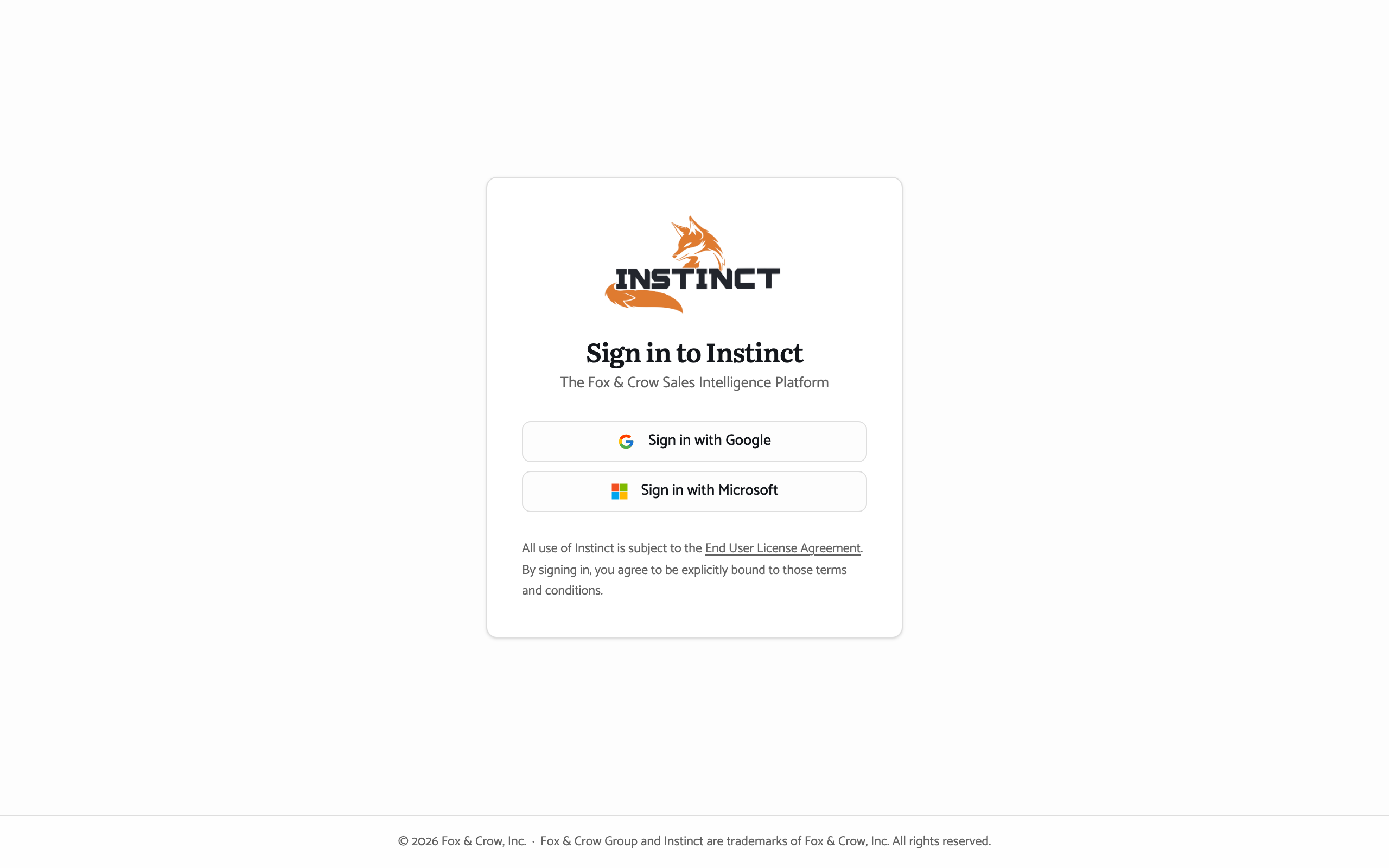
Figure 2.1The sign-in screen. One button per provider your organization has enabled; the link at the bottom opens the End User License Agreement.
If you're turned away
Sometimes sign-in stops with a short message instead of letting you in. The most common ones, in plain English:
| What you see | What it means & what to do |
|---|---|
| Access denied | Your account isn't set up for Instinct yet, or you picked a provider your organization doesn't use. Try the other button, or ask your administrator to add you. |
| Seat limit reached | Your organization has used all of its Instinct seats for now. Your administrator manages seats — let them know you need access. |
| Email not verified | Your email address hasn't been verified with your provider. Verify it in Google or Microsoft, then try again. |
| No sign-in methods are configured | Sign-in hasn't been finished for your organization yet. This one's for your administrator. |
None of these are something you can fix by re-trying a different way — if a message names your administrator, that's who can help.
The licence agreement
The End User License Agreement link on the sign-in screen is the terms you're agreeing to by using Instinct. It's worth a read once; your administrator can answer questions about it.
Signing out
Your account lives at the bottom of the navigation rail — your name and email, with a menu. Open it and choose Log out to end your session. On a shared computer, always log out when you're done; on your own machine you can stay signed in and Instinct will remember you next time.
The bottom line
Your work account is your Instinct account.
Open your organization's link, click your provider, approve it once, and you're in — no extra password, and nothing to set up.