
Section 04 · Working with Lists
04Lists, Filters & Search
Companies, Contacts, Domains, Web Pages, and SERP results all use the same kind of table. Learn it once here and every list in Instinct works the same way: a search box and filters at the top, a table in the middle, and paging at the bottom. The filters on offer differ from list to list, but the mechanics never change.
The shape of every list
Each list page has the same parts, top to bottom:
- A title and short description telling you what you're looking at.
- An optional primary action button on the right — for example Add Company or New Search.
- A filter toolbar — a search box plus the filters that make sense for this list.
- A row of active-filter chips showing what's currently narrowing the list, each with an ✕ to remove it, and a Clear all to reset everything.
- The table itself.
- Pagination at the bottom.
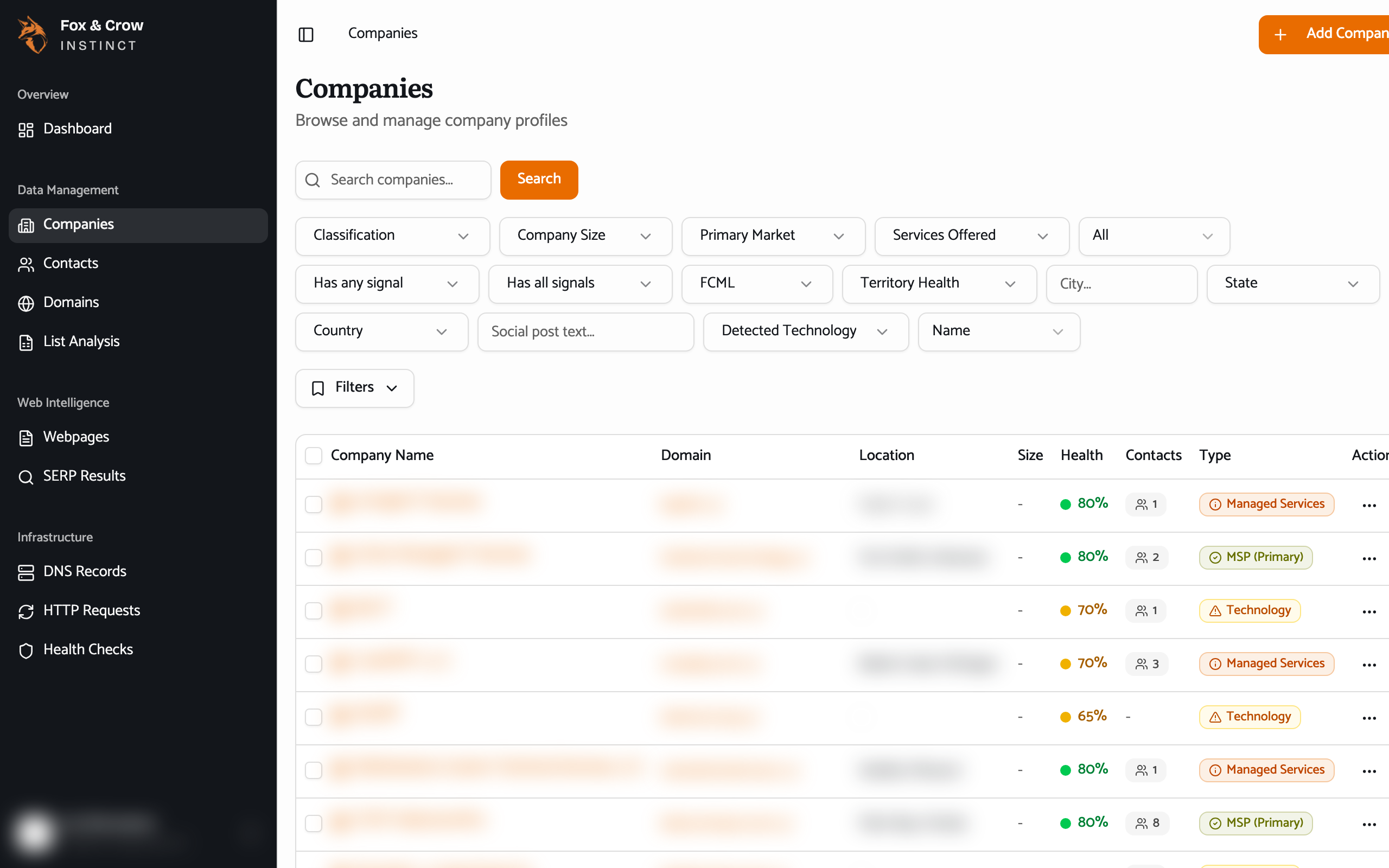
Figure 4.1The anatomy of a list: search and filters on top, active-filter chips beneath them, the table below. Every list in Instinct follows this pattern.
Searching
Every list has a search box — Search companies…, Search domains…, and so on. Type a few characters and the list narrows to matching rows. What each box searches is tuned to the list: the company search, for example, looks across the company's name, its domain, its AI-written description, and its headquarters, so you can find an account by any of them. Search stacks on top of whatever filters you've applied — the two work together.
Filtering
Filters narrow the list to exactly the set you want. Each list offers the filters that fit it — the Companies list has the most (classification, size, market, scores, and more; see Section 06), while a list like Contacts has just a couple. Set a filter and the table updates; every filter you've set shows as a chip below the toolbar.
- Read the chips to see what's applied. Each chip names the filter and its value. This is your quick answer to "why am I only seeing these rows?"
- Remove one at a time with the ✕ on its chip, or
- Reset everything with Clear all to get back to the full list.
Most controls hover-explain themselves: rest your pointer on a filter and a tooltip tells you what it does.
Filters narrow; search finds
Use filters to build the set you want to work through — every Healthcare MSP of a certain size, say. Use the search box to jump to a row you can already name inside that set. They combine, so you can filter to a segment and then search within it.
The table
The results table behaves the same everywhere:
- Open a row by clicking it — that takes you to the record. To open it in a new browser tab and keep your place in the list, hold Ctrl (Windows) or ⌘ (Mac) as you click. Handy for fanning several records out to tabs.
- Select rows with the checkboxes. The checkbox in the header selects every row on the page at once.
- The ⋯ menu at the end of each row holds per-row actions — typically View details, Edit, a link out to the record's website, and Delete. The exact items depend on the list.
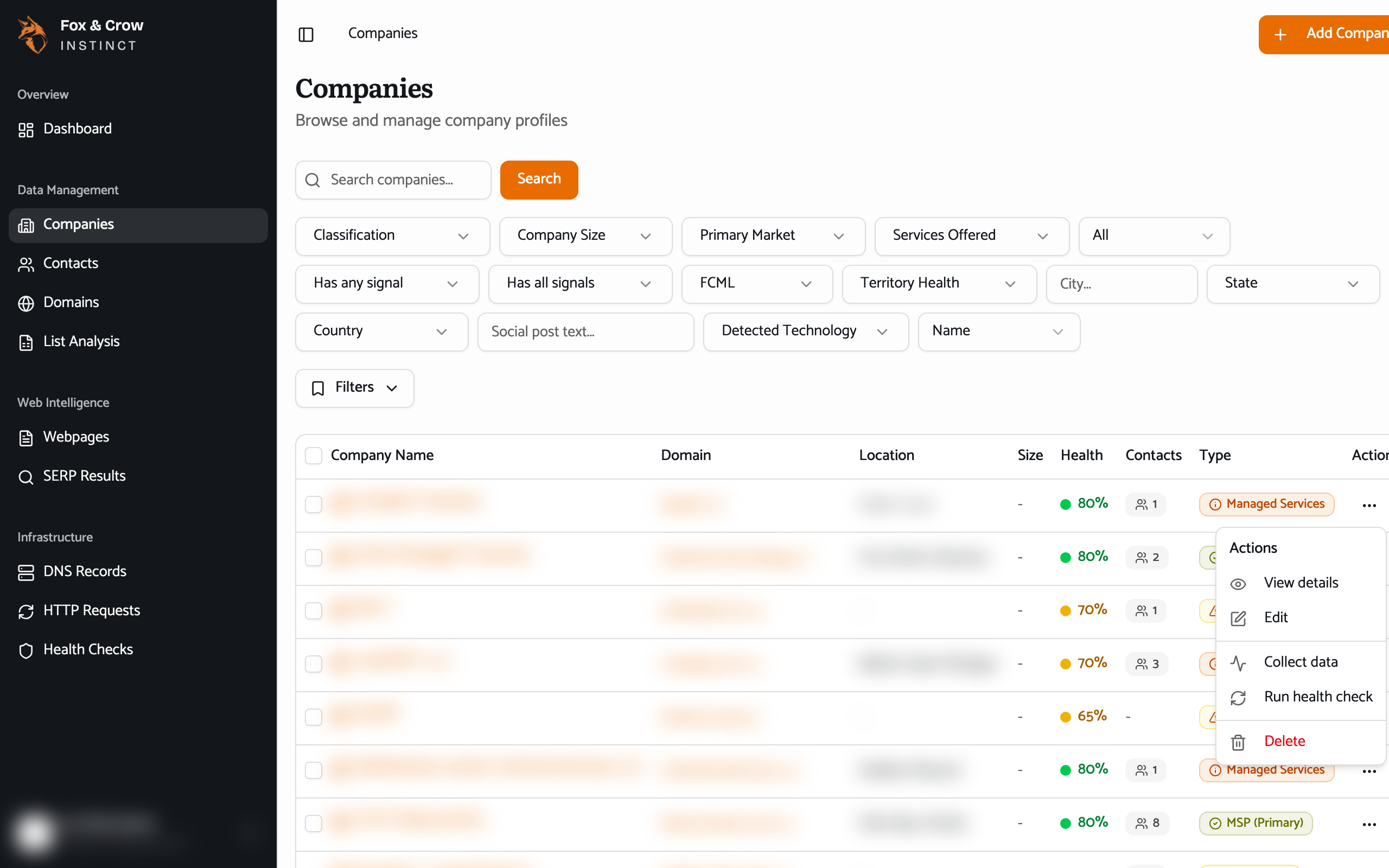
Figure 4.2The ⋯ menu at the end of a row. Every list has one; the actions inside are tailored to that record type.
Selecting several rows at once
Tick the checkboxes on more than one row and a bulk-action bar appears above the table. What you can do in bulk depends on the list — on Companies, for instance, you can export just the rows you've selected. Bulk actions are covered per-list in the sections that follow.
Paging through a long list
The controls at the bottom move you through the results a page at a time and let you jump between pages. If a list is long, filter it down first — it's faster than paging through everything.
When a list is empty
An empty table is telling you something, and Instinct says which:
| What you see | What it means |
|---|---|
| No … yet | There's genuinely nothing here to show. |
| No … found | Your search or filters matched nothing — loosen them or Clear all. |
| … hasn't been collected yet | This kind of data hasn't been gathered for this record yet. It may arrive on a later refresh. |
| Error loading … | Something went wrong fetching the data. Refresh the page; if it persists, let your administrator know. |
The bottom line
One table, everywhere.
Search to find, filter to narrow, read the chips to see what's applied, click to open (⌘/Ctrl-click for a new tab). Learn it on one list and you've learned it on all of them.