
Section 03 · Getting Started
03Finding Your Way Around
Instinct has one layout that never changes: a navigation rail down the left, a slim bar across the top, and your work in the middle. Learn these three areas once and you'll always know where you are. This section also introduces the Dashboard — the screen you land on every time you sign in.
The left navigation rail
The rail is your map of Instinct. It's grouped so related pages sit together:
- Overview — Dashboard, your at-a-glance home screen.
- Data Management — Companies, Contacts, Domains, and List Analysis. This is where you'll spend most of your time.
- Web Intelligence — Webpages and SERP Results: the pages we've crawled and the search-engine results we've captured, browsable across every company.
- Infrastructure — DNS Records, HTTP Requests, and Health Checks: the technical web data. Most of this is richest when viewed on a single company or domain (Part 3 and Part 4).
Click any item to open it. The rail stays put as you move around, and it highlights the page you're currently on. What appears here is tailored to your organization — if Contacts isn't enabled for you, for instance, it won't show.
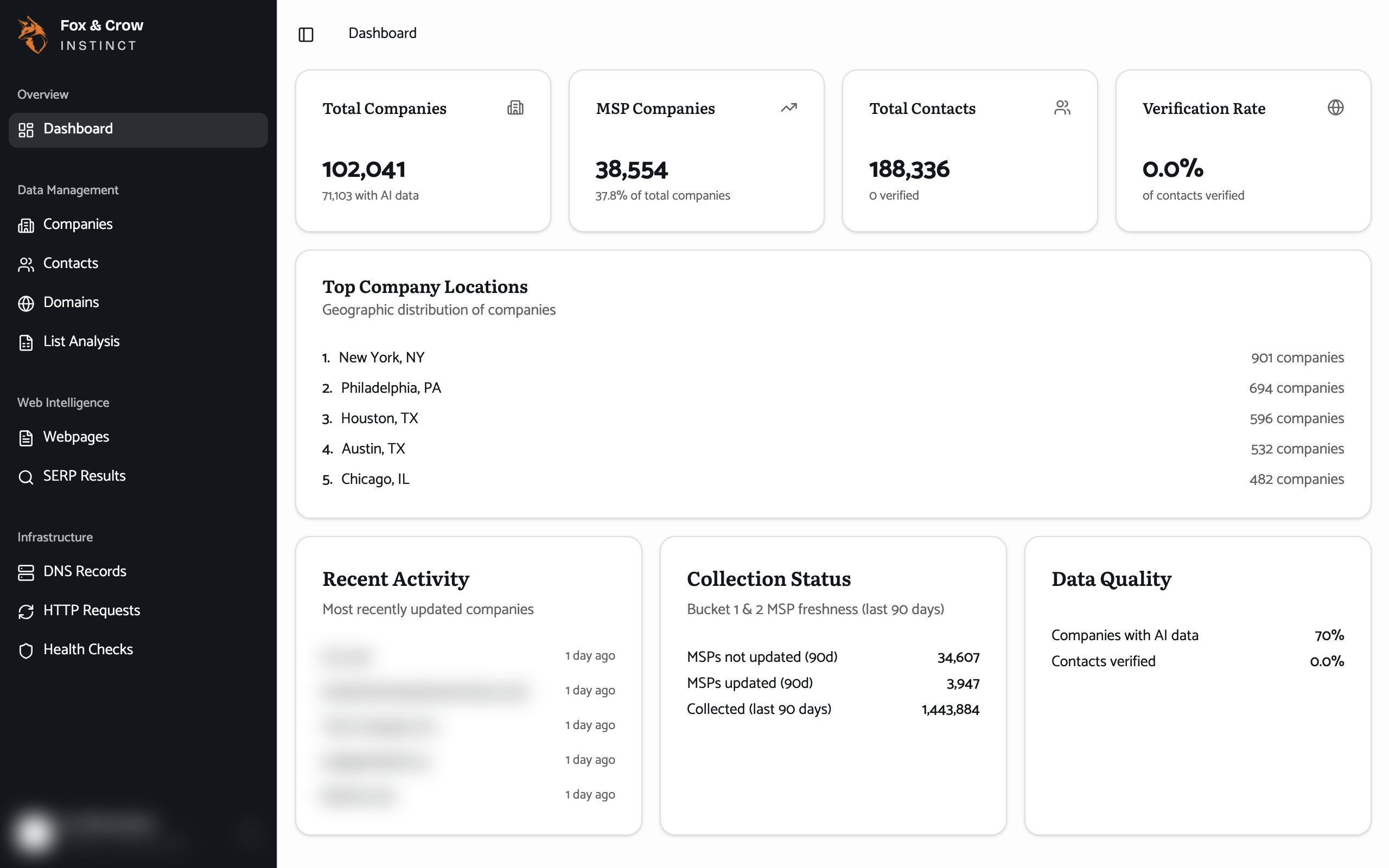
Figure 3.1The standard layout: navigation rail (left), top bar with the collapse toggle and breadcrumb (top), and your work (center).
The top bar and breadcrumb
The slim bar across the top does two things. On the left, a toggle collapses the navigation rail down to just its icons — handy when you want more room for a wide table — and expands it again. Next to it, a breadcrumb shows the trail to where you are, for example Companies › Summit IT Partners › Infrastructure. Each step in the breadcrumb is a link, so it's the quickest way back up a level.
Searching happens inside each list
Instinct doesn't have one search box for the whole app. Instead, every list — Companies, Contacts, Domains, and the rest — has its own search and filters. When you want to find something, open the relevant list and search there. Part 2 shows you exactly how.
The Dashboard
The Dashboard is your home screen — Instinct lands you here at every sign-in. It's a read-only snapshot of the whole data set, not just your own work, so it's a good gut-check on coverage and freshness. Across the top sit four summary cards:
- Total Companies — how many companies Instinct is tracking, and how many have AI-analyzed data.
- MSP Companies — how many are classified as managed-service providers, and what share of the total that is.
- Total Contacts — how many people are on file, and how many have verified contact details.
- Verification Rate — the share of contacts whose details we've verified.
Below them, Top Company Locations lists where the companies cluster, Recent Activity links to the companies updated most recently, and two more cards — Collection Status and Data Quality — summarize how fresh and how complete the data is. Every company name on the Dashboard is a link straight into that company's profile.
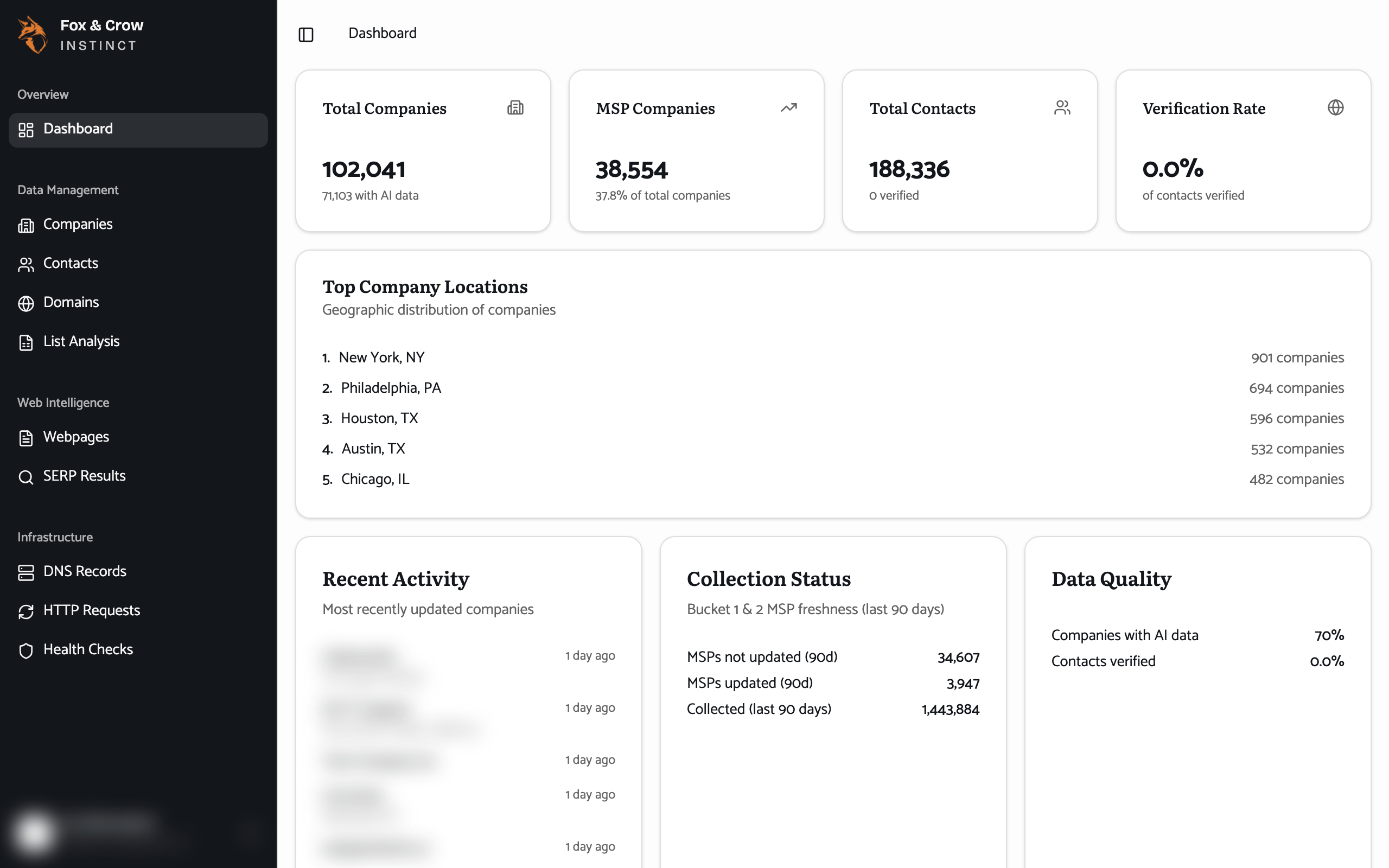
Figure 3.2The Dashboard. Summary cards up top; locations, recent activity, and data-quality panels below. Names link straight to their company profile.
Your account & getting help
At the bottom of the navigation rail is your account — your name and email, with a menu that includes Log out. Nearby you'll also find the Help & Support link, which opens this guide in a new tab. Whenever a screen leaves you wondering what something means, that link — and the Glossary in Section 18 — is the fastest way to an answer.
The bottom line
Rail on the left, breadcrumb up top, work in the middle.
Learn the four navigation groups and the Dashboard, remember that search lives inside each list, and you'll never be more than a click or two from any company in your market.