
Section 13 · Companies
13Timeline
Everything in a company's profile has a history, and the Timeline tab is where you see it: a dated record of what Instinct has collected and checked for that company over time. It answers two simple questions — how fresh is this profile, and what has changed?
What the Timeline shows
The Timeline tab lists the company's activity — its health checks and collection events — ordered by time and grouped by date, most recent first. Scanning it tells you at a glance when the profile was last refreshed and how regularly it's kept current.
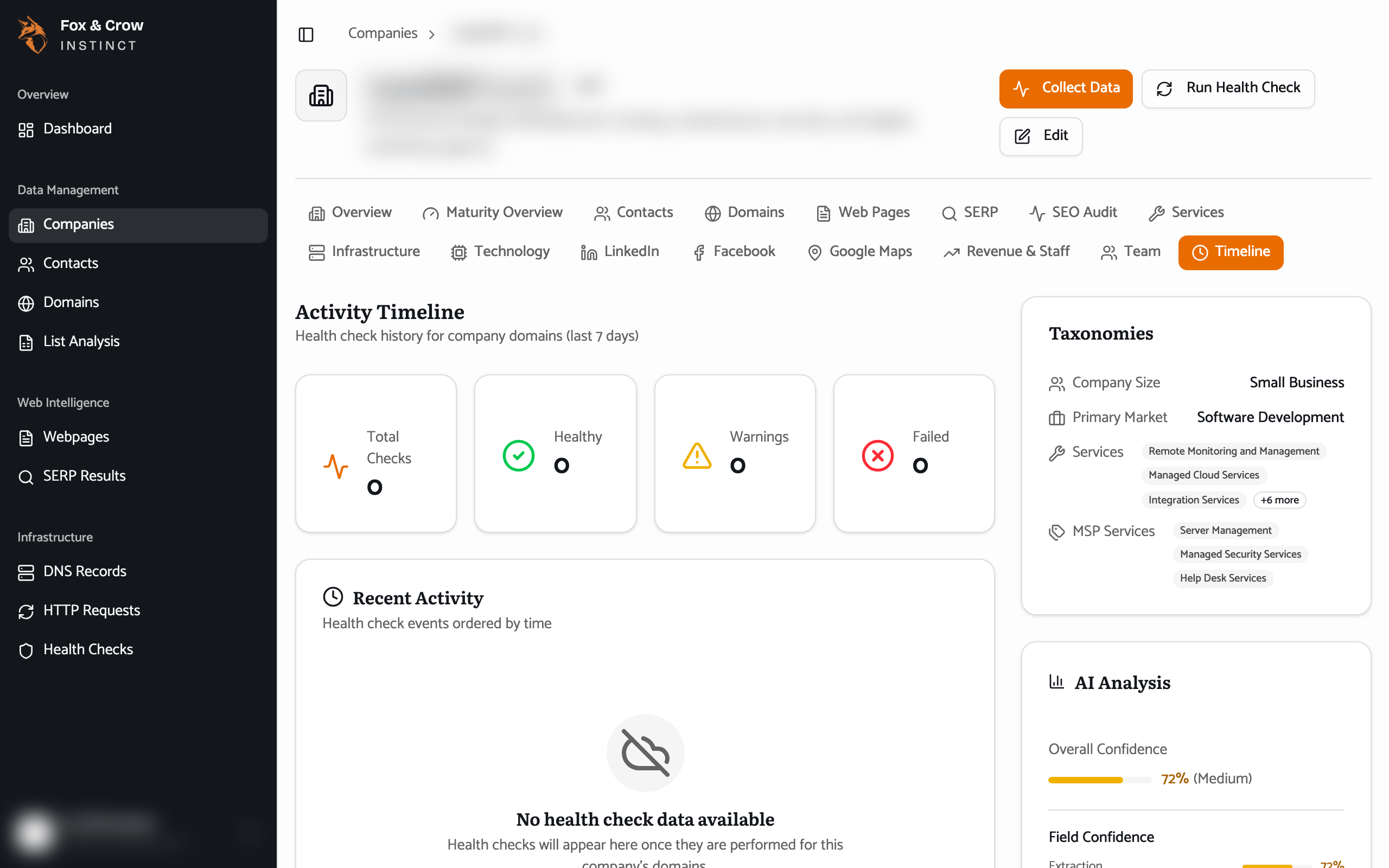
Figure 13.1The Timeline. Collection and health-check events, grouped by date with the newest at the top.
Why it's useful
- Judge freshness. A profile checked recently is one you can act on with confidence; one that hasn't been touched in a while is worth treating as older intelligence.
- See the cadence. Regular entries show a company that's actively kept up to date.
- Set expectations. If a tab says its data hasn't been collected yet, the Timeline is where you'll later see it arrive.
Fresh data, better conversations
Before you use a detail from a profile in a conversation, a glance at the Timeline confirms how current it is. Instinct refreshes companies on a schedule, so most profiles stay current on their own — the Timeline is simply how you check.
If a company has no recorded activity yet, the tab will say so — nothing has been collected or checked for it at this point.
The bottom line
How fresh, and what changed.
The Timeline is the profile's paper trail — a quick, honest read on how current the intelligence is before you lean on it.