
Section 12 · Companies
12Contacts
Behind every company are the people you'll actually talk to. Instinct keeps a record for each contact it finds — name, title, and the email and phone numbers we can verify. You can reach contacts two ways: on a company's own Contacts tab, or through the Contacts list in the navigation rail, which spans everyone at once.
Contacts may be turned off for your organization
Contacts is an optional area. If you don't see Contacts in your navigation rail or as a tab on a company, it simply isn't enabled for your organization — nothing is wrong, and the rest of Instinct works exactly as described.
Contacts on a company
Every company profile has a Contacts tab listing the people on file there. The company Overview tab also surfaces a few Key Contacts up front. Where we have them, an email address is a click-to-send link and a phone number is click-to-call, and a Verified badge marks the details we've been able to confirm.
The Contacts list
The Contacts list in the navigation rail is every contact across every company in one table. It works like any other list (Part 2), with a couple of controls of its own:
- A Search contacts… box to find someone by name.
- A status filter — All Contacts, Verified Only, or Unverified Only — so you can, for instance, work only from contacts whose details we've confirmed.
The columns show each person's Name, their Company, their Job Title, their Contact Info (mail and phone icons), and their Status (a Verified or Unverified badge). The ⋯ menu on a row includes View details and a handy View company to jump to the account they belong to.
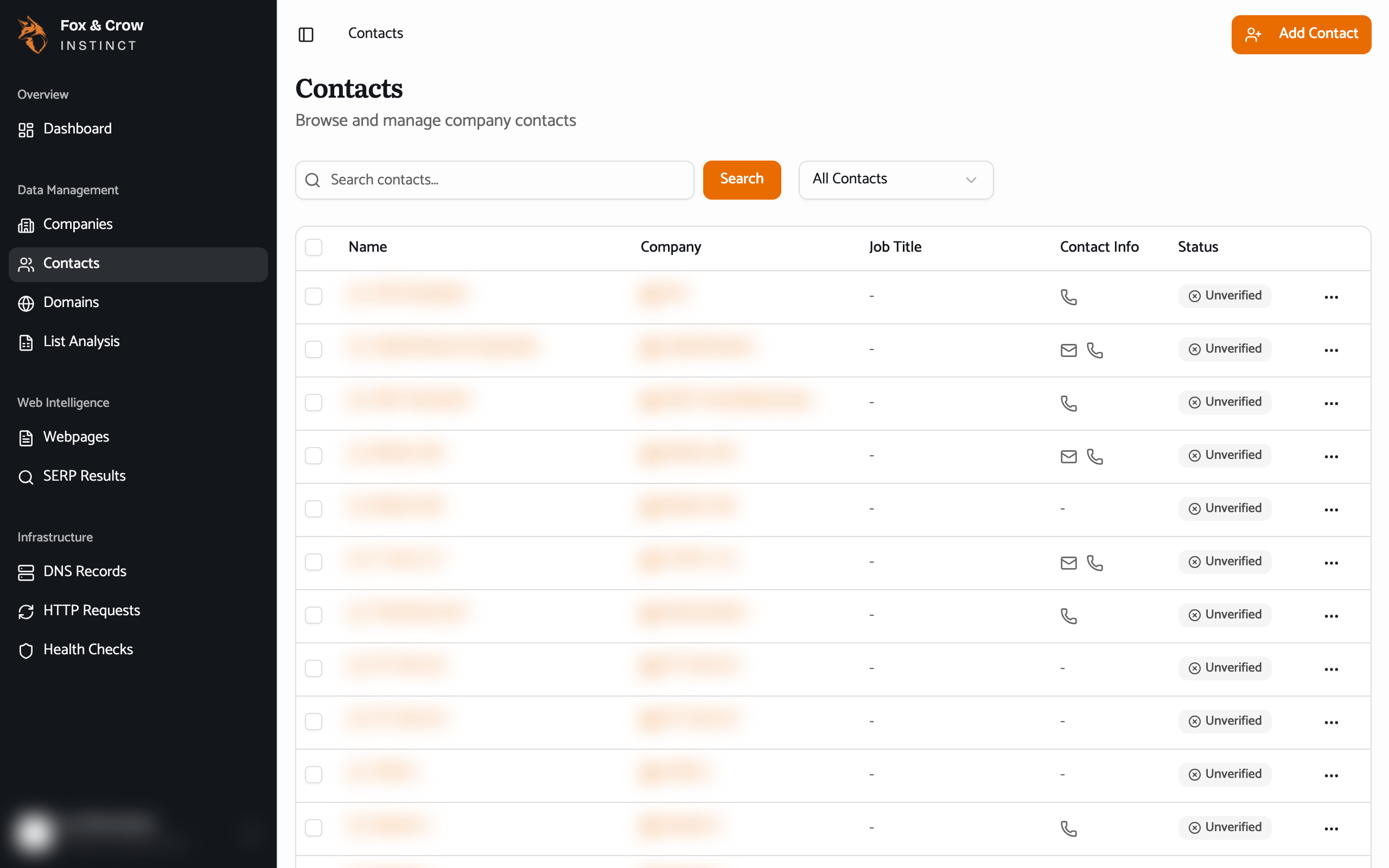
Figure 12.1The Contacts list. Search by name, filter by verified status, and jump from any person to their company.
A contact's details
Open a contact to see everything on that person:
- Contact Information — their emails and phone numbers (click-to-send and click-to-call), any social links, and a completeness percentage showing how filled-in the record is.
- Source Information — where the details came from: the Source URL, and an AI Confidence Score for how sure Instinct is about them.
- A sidebar linking to their Company, plus Metadata — when the record was created, last updated, and last verified.
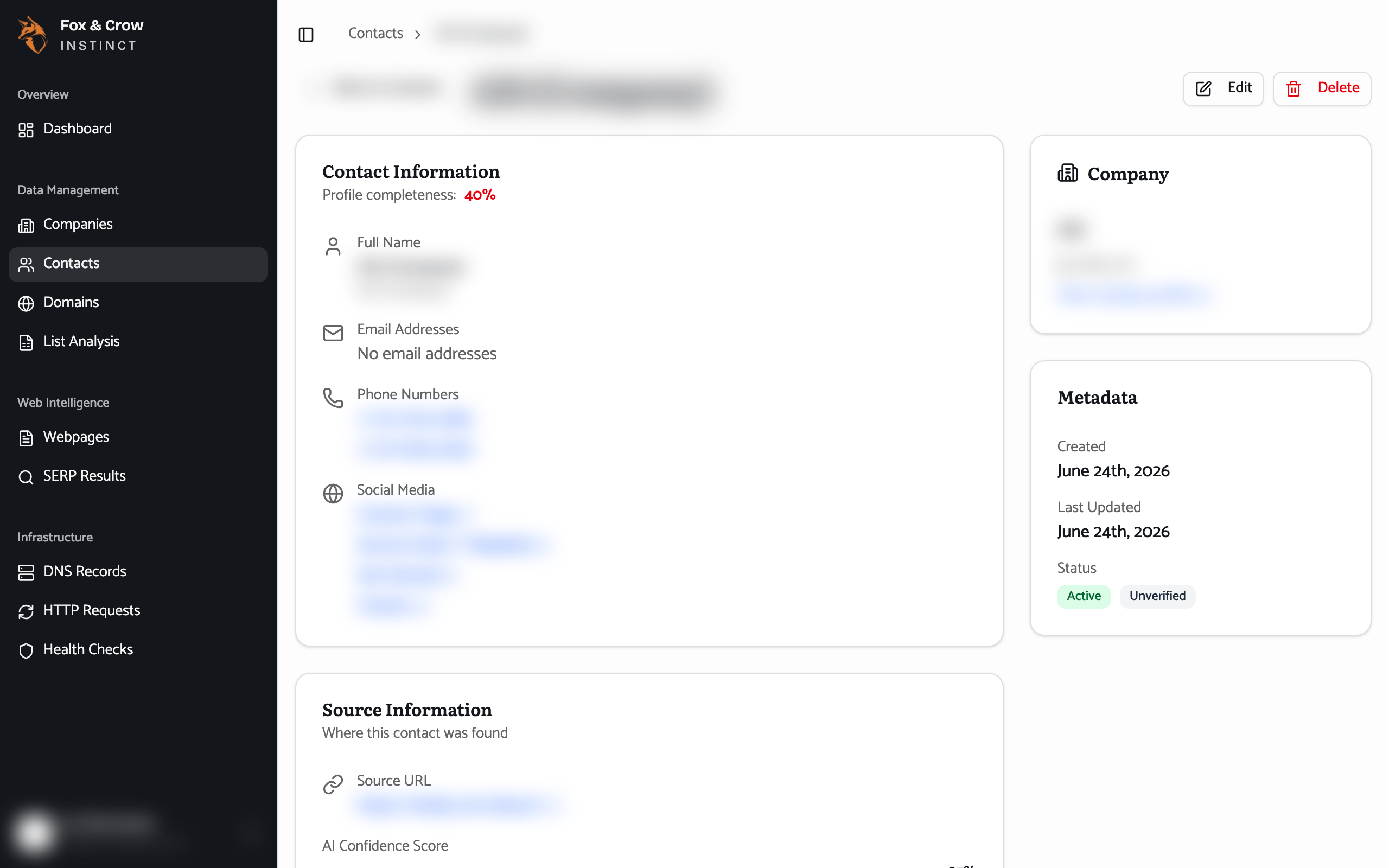
Figure 12.2A contact record. Verified contact details, where they came from, how confident we are, and a link back to the company.
Lead with verified, confirm the rest
The Verified badge and the AI Confidence Score tell you which details to trust outright and which to confirm. Filtering the Contacts list to Verified Only is the fastest way to a call list you can dial with confidence.
The bottom line
The people behind the account.
Find contacts on a company or across the whole list, lean on the verified ones, and use the confidence and source on each record to know exactly what you're working with.