
Section 15 · Domains, Web Pages & Search
15Web Pages
Instinct reads individual pages from companies' websites and keeps each one as a record — its content, how it's changed over time, where it links, and a screenshot of how it looked. You can browse every crawled page from the Webpages list, or reach a company's pages from its profile. This section covers the list and the detail behind a page.
The Webpages list
The Webpages list holds every page Instinct has crawled, across all companies. Its search box (Search URL or title…) matches on either, and three filters narrow it:
- Page Type — what kind of page it is: Homepage, About, Services, Contact, Blog, or Other.
- Has Company — whether the page is tied to a company record or not.
- Domain — narrow to pages from a particular domain.
The columns show the URL (with a link out to the live page), the Title, its Domain, its Type, the Company it belongs to, how many Versions we've captured, and the Last Crawl date.
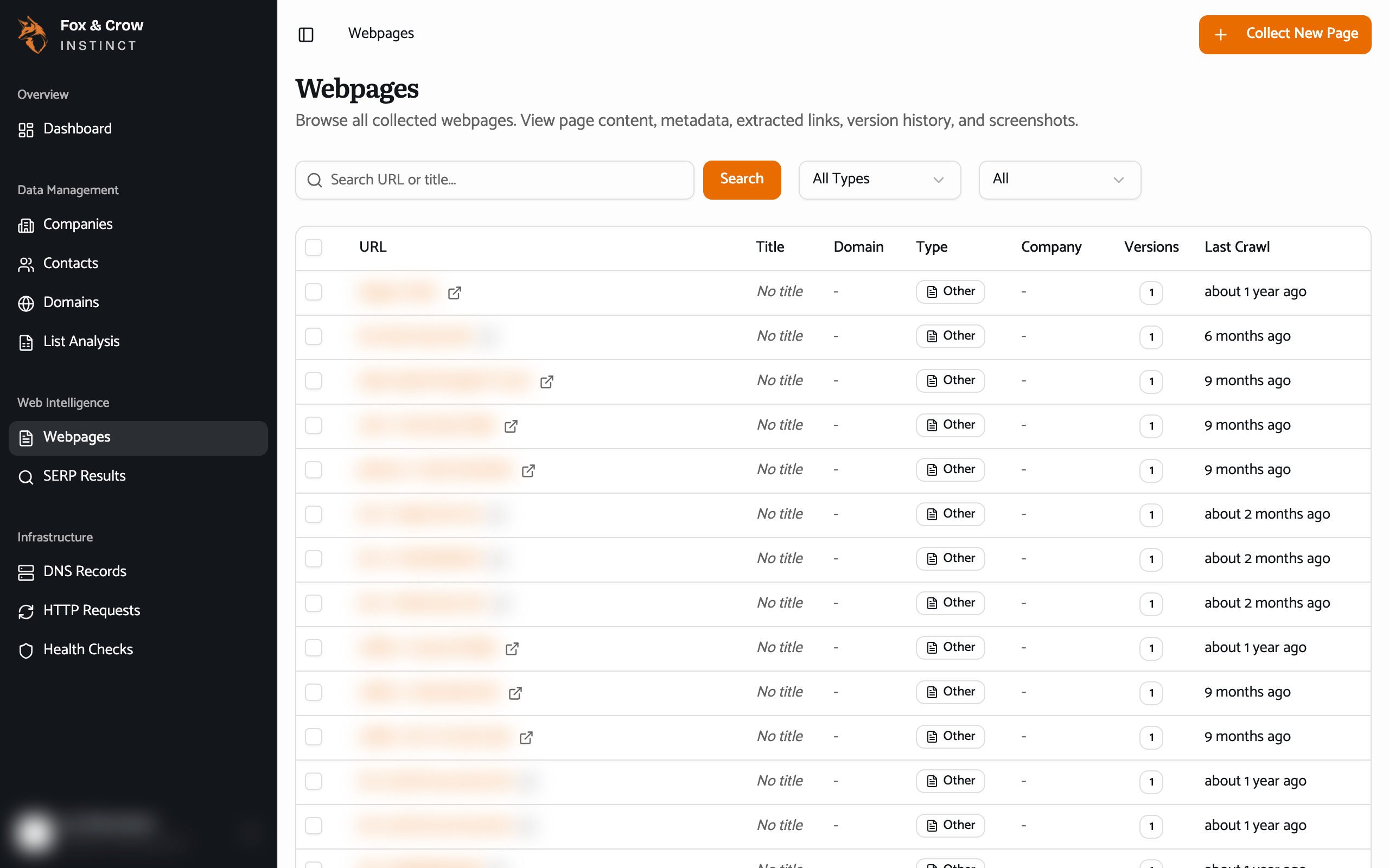
Figure 15.1The Webpages list. Filter by page type, domain, or whether a page is linked to a company.
A page's detail
Open a page and you get its full record, organized into tabs. The header shows the page type and status, with a Visit Page link, and a sidebar names the Domain and Company and when the page was first and last crawled.
| Tab | What's on it |
|---|---|
| Overview | The page's summary and key facts. |
| Content | The text Instinct extracted from the page — what it actually says. |
| Versions | The history of the page: each captured version, so you can see what's changed. |
| Links | The links found on the page. |
| Screenshot | A captured image of how the page looked when crawled. |
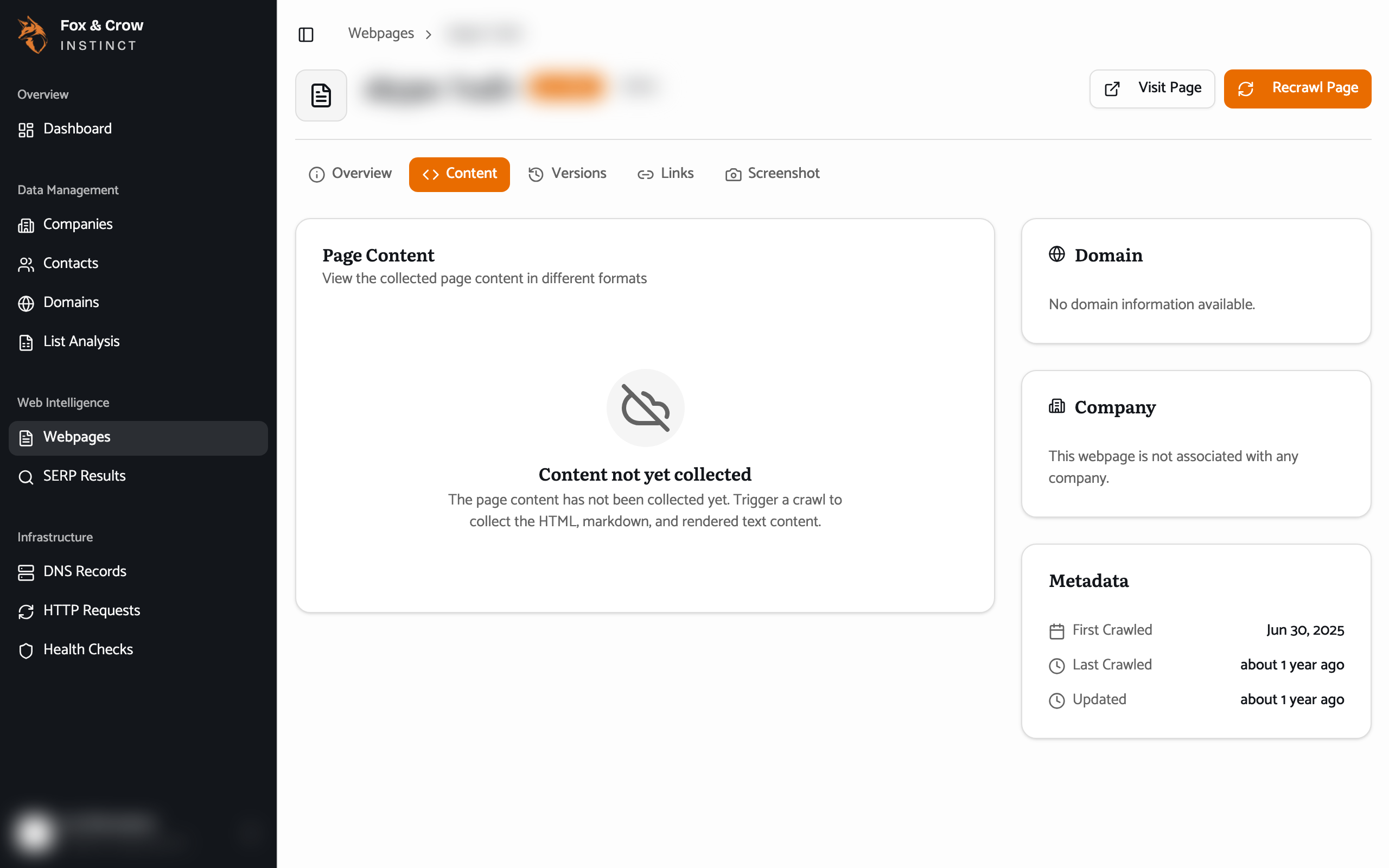
Figure 15.2The Content tab. The text Instinct pulled from the page — searchable and quotable without leaving the app.
Versions catch what a company is up to
The Versions tab is quietly powerful: when a company rewrites its services page or refreshes its homepage, the change shows up here. A recently changed services page can mean a new offering worth asking about.
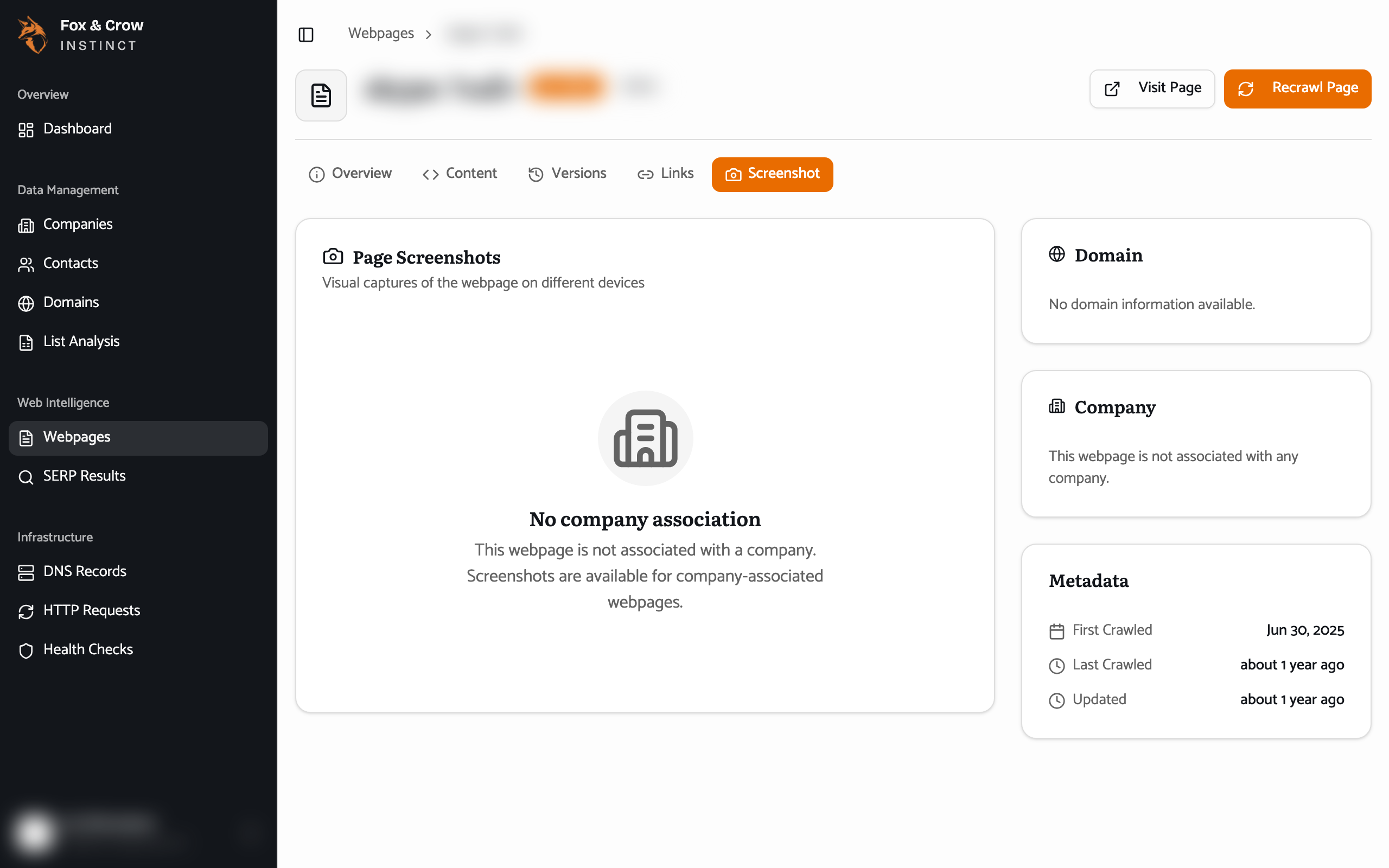
Figure 15.3The Screenshot tab. See how a page looked when it was crawled, without opening the live site.
The bottom line
Every page, read and remembered.
Content to see what a page says, Versions to see what changed, Links and Screenshot for the rest — the pages behind a company, captured so you don't have to go digging.