
Section 05 · Working with Lists
05Saved Filters & Export
Once you've built a set of filters you'll use again — every mid-sized MSP in your region, say — you don't want to rebuild it each morning. The Companies list lets you save a filter set and reload it in one click, and export the results to a spreadsheet or data file. This section covers both.
Saving a filter you'll reuse
On the Companies list, build the filters you want (Section 06), then open the Filters menu — the bookmark button in the toolbar. Choose Save Current Filter, give it a clear name (the box suggests something like "Large MSPs in Healthcare"), and save. It joins your list of saved filters in that same menu.
- Build the filter Set the classification, size, market, scores, or whatever combination you want.
- Open the Filters menu & choose Save Current Filter Instinct shows you a preview of exactly which filters you're about to save, so there are no surprises.
- Name it and save Pick a name you'll recognize later. It appears in the Filters menu from now on.
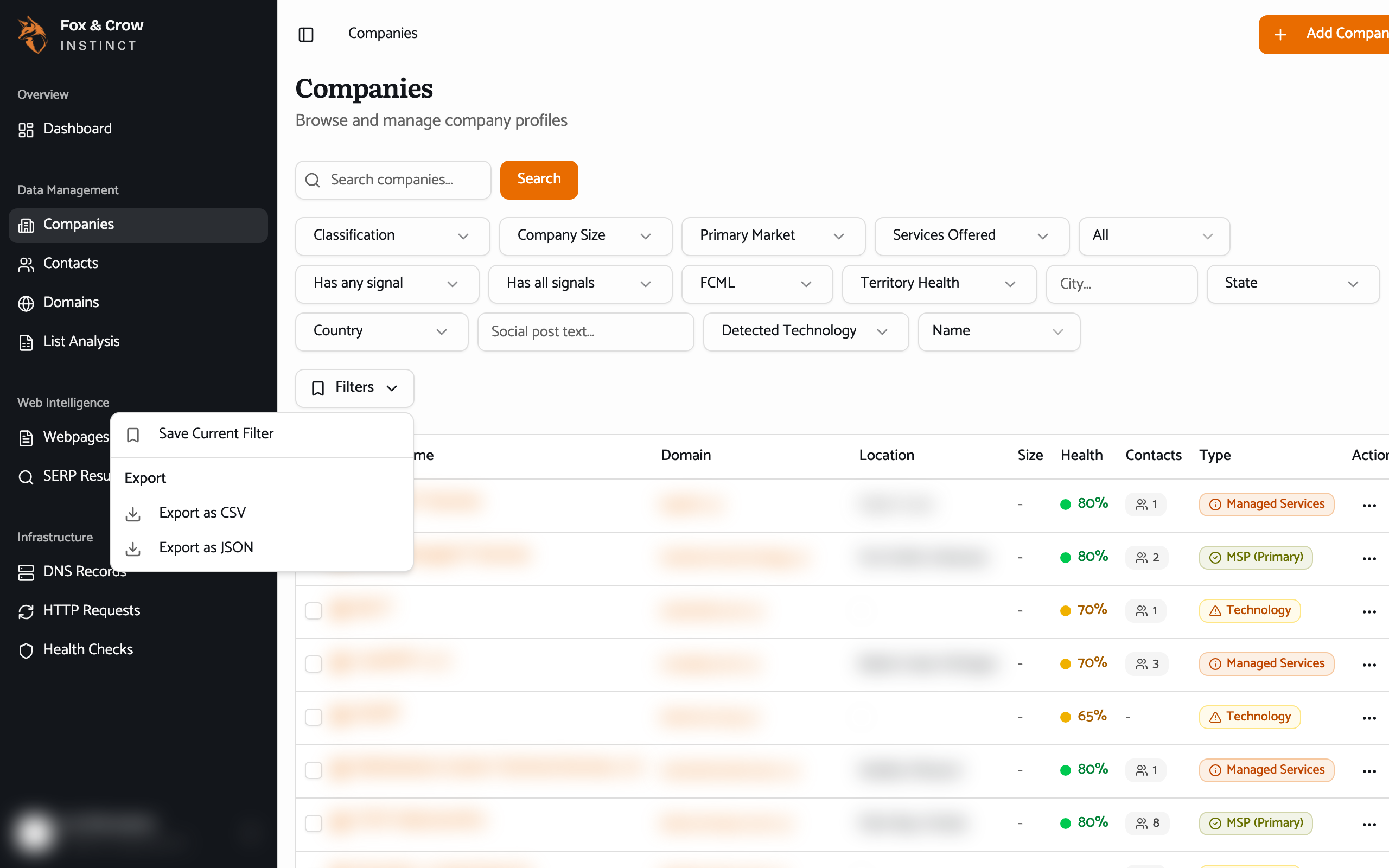
Figure 5.1The Filters menu. Save the current filter, reload a saved one, or delete one you no longer need — and export, all from the same place.
Reloading and managing saved filters
Open the Filters menu any time to see your saved filters. Click one to apply it instantly — the table narrows and the chips light up to match. Each saved filter has a small delete control next to it for when you no longer need it.
Saved filters live in your browser
Your saved filters are stored in the browser you're using, so they follow that browser rather than your login. If you switch to a different computer or browser, you'll set them up again there — it only takes a moment.
Exporting a list
Instinct can hand you the companies you're looking at as a file to open in Excel, Google Sheets, or another tool. From the Filters menu, choose:
- Export as CSV — a comma-separated file that opens in any spreadsheet program.
- Export as JSON — a structured data file, useful if a colleague wants to load it into another system.
The export respects your current filters — you get exactly the set you've narrowed to, not the whole database. For a large set, Instinct assembles the file a page at a time and shows its progress ("Exporting page 3 of 12…"); let it finish and your browser downloads the file.
Exporting just a few rows
If you only want a handful of companies rather than the whole filtered set, tick their checkboxes and use Export Selected from the bulk-action bar (Section 06). Same file, just the rows you chose.
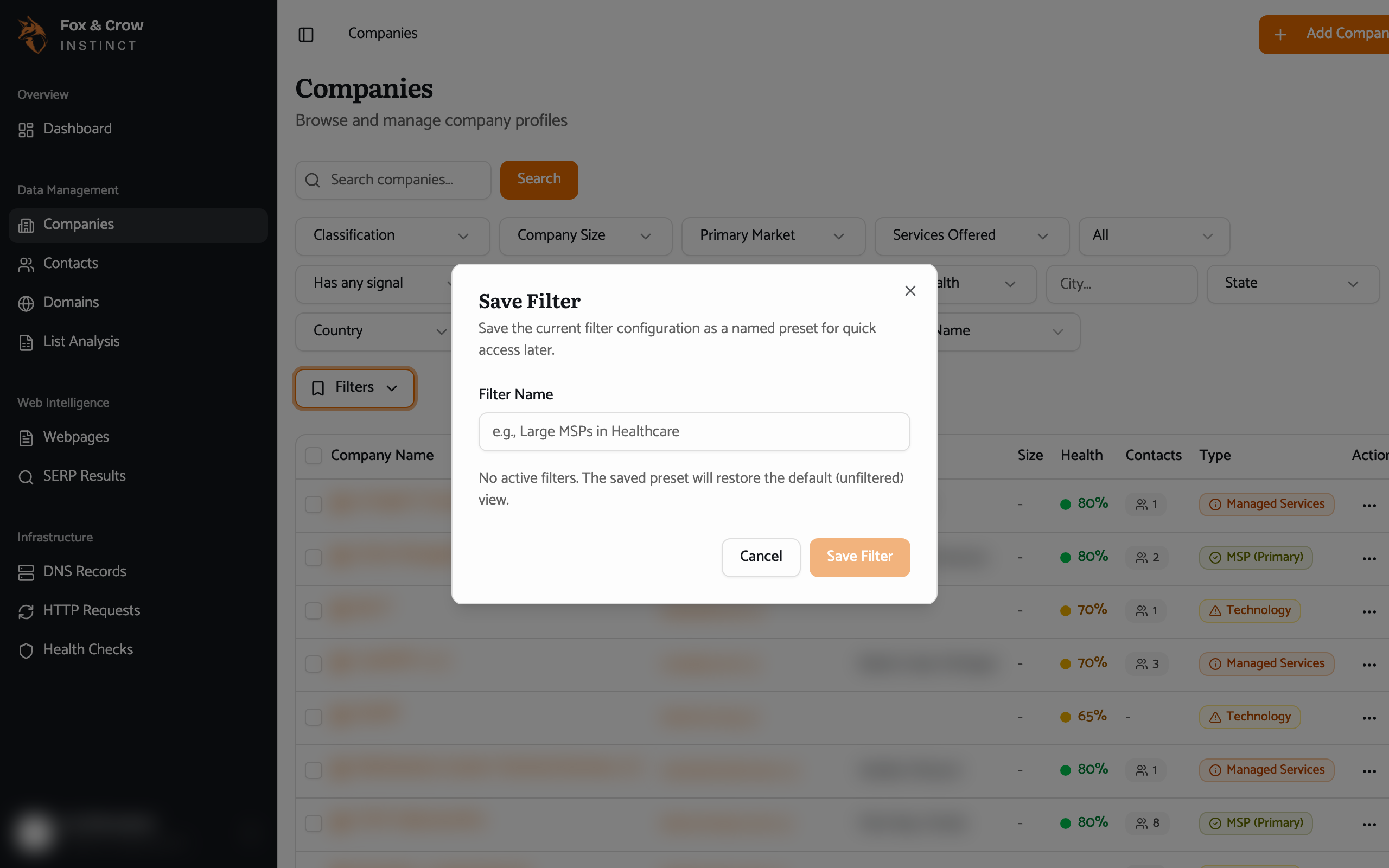
Figure 5.2Saving a filter. The dialog previews the exact conditions you're saving before you name it.
The bottom line
Build it once, reuse it forever.
Save the filters you return to, reload them in a click, and export the result to a spreadsheet whenever you need the list outside Instinct.