
Section 17 · Tools & Reference
17List Analysis
Have a spreadsheet of companies from somewhere else — a conference list, a partner's book, a prospecting export — and want to know how many of them Instinct already covers? List Analysis is the self-serve tool for exactly that. Upload your list, and Instinct hands back a coverage-and-enrichment workbook you can open in Excel.
Running an analysis
Open List Analysis from the navigation rail. The Analyze a company list card walks you through it:
- Name it Put something recognizable in the Customer name box — it names your job and the workbook you'll download.
- Choose your CSV Pick a .csv file that has a company name column, a website column, or both. The more you provide, the better the matching.
- Check the preview Instinct reads your file and previews what it found — for example "Detected 240 rows; columns: Company, Website, City." Make sure that looks right.
- Start analysis Click Start analysis. Your job begins and appears in Recent analyses below.
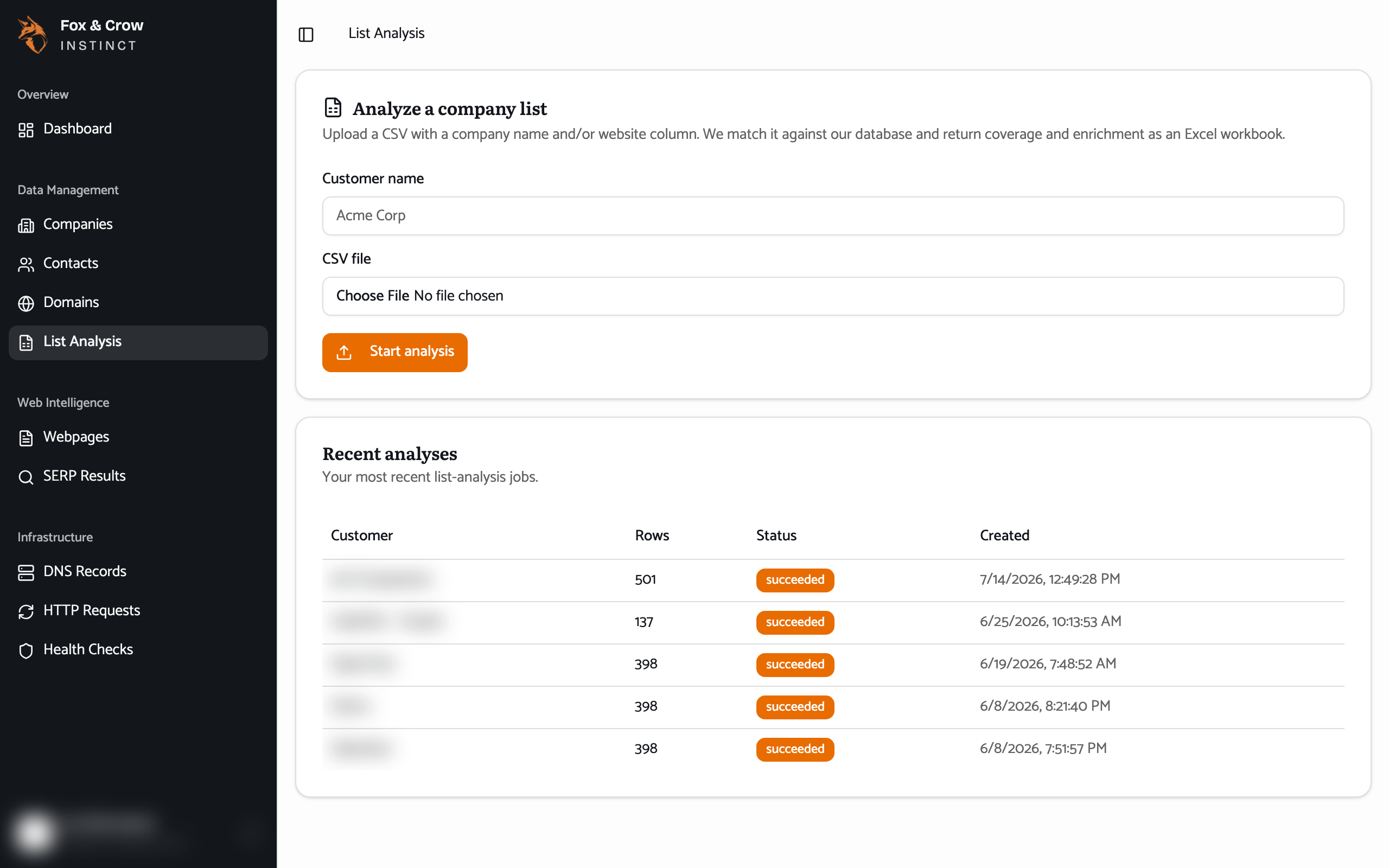
Figure 17.1Starting an analysis. Name the job, pick a CSV with company names and/or websites, confirm the preview, and start.
Watching it run and getting your workbook
Click into a running job to watch it. The page updates itself as the work progresses ("Analysis in progress…"), so you can leave it open. When it finishes, a set of summary tiles appears:
- Coverage % — the share of your list Instinct already knows.
- Matched — rows confidently matched to a company we cover.
- Review — rows that are a likely match but worth a human check.
- Unmatched — rows we couldn't match.
A Download workbook button gives you the full result as an Excel file (named after your customer), with the coverage and enrichment for every row — ready to share or work from.
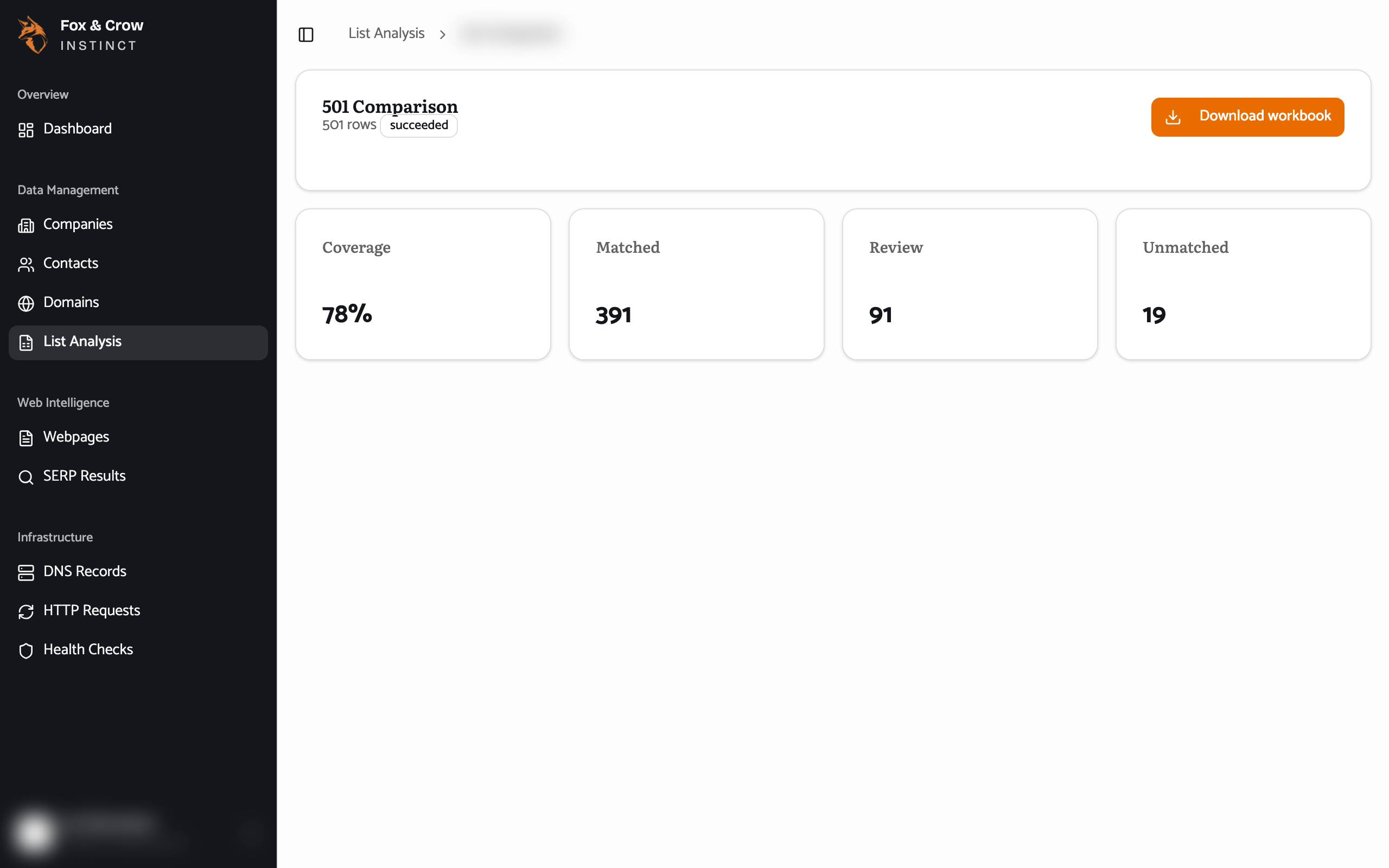
Figure 17.2A finished analysis. Coverage at a glance, and a one-click download of the full workbook.
Good to know
| If you see… | What's happening |
|---|---|
| File too large | Your CSV is over the size limit. Split it into smaller files and run them separately. |
| Monthly limit reached | There's a cap on how much you can analyze each month, and you've hit it. It resets next month; your administrator can tell you the limit. |
| An analysis is already running | Only one job runs at a time. Let the current one finish, then start the next. |
Give it names and websites
Matching is best when your CSV includes a website column as well as a company name — a domain is the most reliable way to match a company. If your list has only names, you'll still get a result, just with more rows landing in Review.
The bottom line
Your list, measured against Instinct.
Upload a CSV, get back a coverage workbook — a fast, self-serve way to see how much of any list Instinct already has, and to enrich it in one step.