
Section 07 · Companies
07The Company Profile
Open any company and you land on its profile — the single richest screen in Instinct. Everything the platform knows about that company lives here, organized into a header, a row of tabs, and a sidebar of summary cards that stays with you as you move between tabs. This section maps the layout and walks the Overview tab; the tabs after it get their own sections.
The header
Across the top sits the company's name, a one-line description, and — if it qualifies — an MSP badge. To the right are a few action buttons, including Edit. Two others, Collect Data and Run Health Check, are there for a future release; Instinct refreshes each company for you on a schedule, so you don't need to trigger collection yourself.
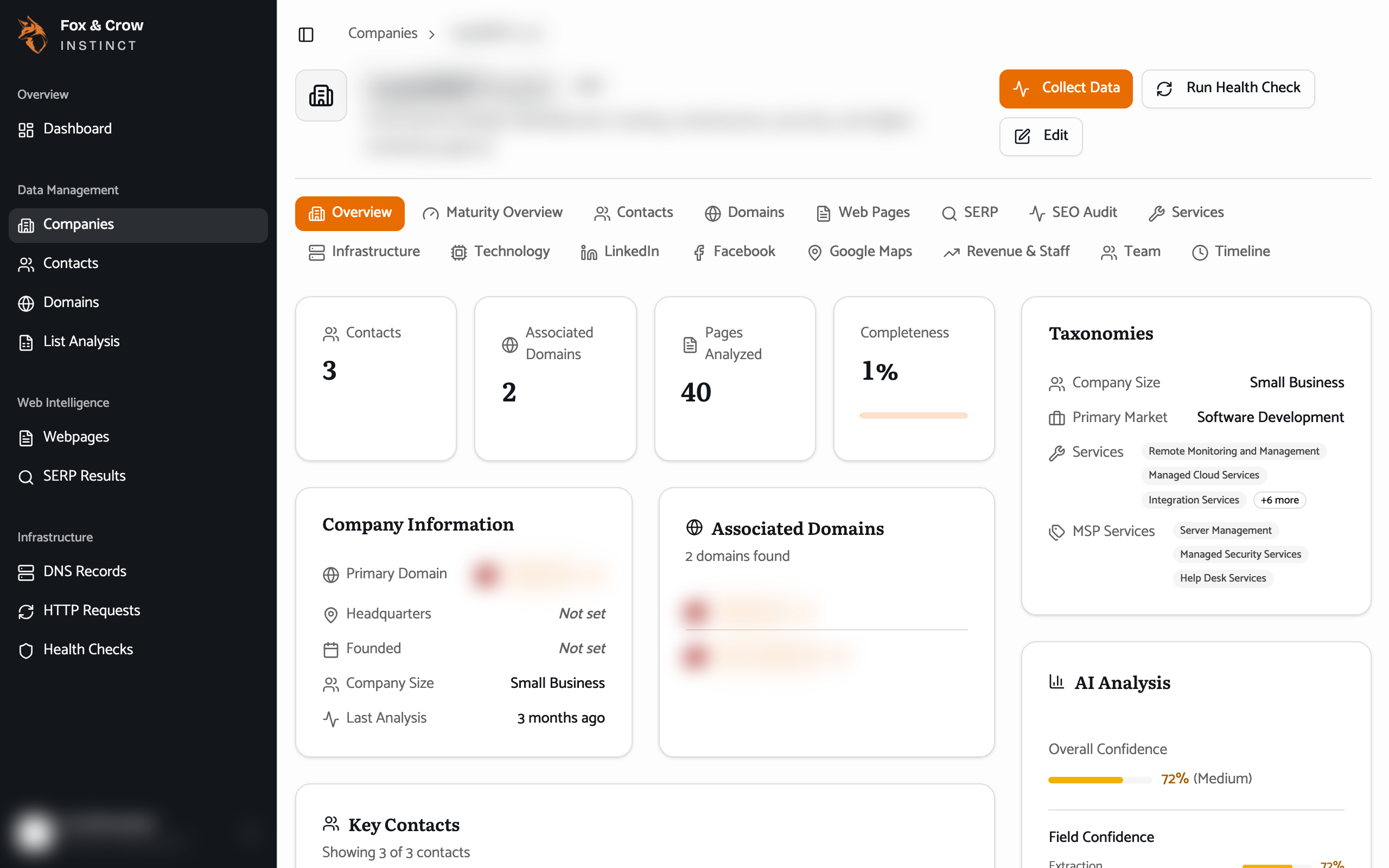
Figure 7.1The company profile. Header and tabs across the top, the active tab's content in the main column, and the summary cards down the right.
The tabs
The row of tabs is your table of contents for this company. Each opens a different slice of what Instinct knows:
| Tab | What's on it | Covered in |
|---|---|---|
| Overview | The at-a-glance summary (below). | This section |
| Maturity Overview | The Fox Crow Maturity Level and its sub-scores. | Section 08 |
| Contacts | The people at the company. | Section 12 |
| Domains · Web Pages · SERP · SEO Audit | The web presence and search footprint. | Sections 09, 14–16 |
| Services | The services the company offers. | This section |
| Infrastructure · Technology | DNS, email security, and detected vendors. | Section 10 |
| LinkedIn · Facebook · Google Maps · Team | Social profiles, reviews, and hiring. | Section 11 |
| Revenue & Staff | Modeled revenue and headcount estimates. | Section 08 |
| Timeline | What's been collected and checked, over time. | Section 13 |
A tab may say its data hasn't been collected yet — that simply means that slice hasn't been gathered for this particular company. It may fill in on a later refresh.
The sidebar cards
Down the right side, a stack of cards summarizes the company no matter which tab you're on. These are the fastest read on any account:
- Taxonomies — how the company is classified: its type, market, and the services it's tagged with.
- AI Analysis — a confidence read on the AI-derived facts. It shows an overall confidence plus, where relevant, confidence per field, and names the model used. Treat lower-confidence fields as "worth double-checking."
- Instinct Scores — the two headline scores, Territory Health and Fox Crow Maturity Level, with a short breakdown of the geography behind Territory Health. Section 08 explains both.
- Metadata — housekeeping: when the record was created and last updated.
- Quick Actions — shortcuts, including Visit Website and, where connected, View in Membrain (your CRM).
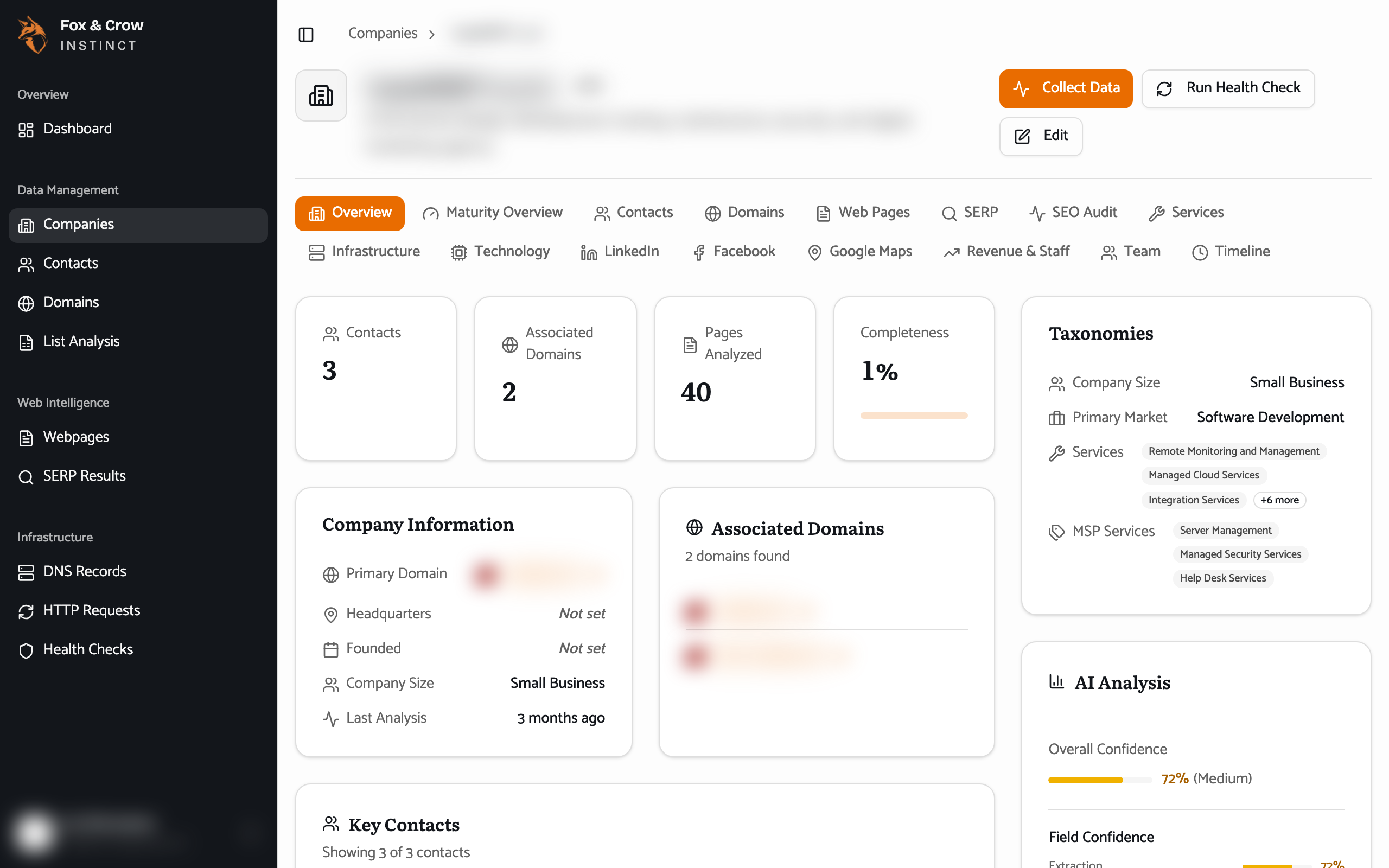
Figure 7.2The sidebar cards. Classification, AI confidence, the two Instinct Scores, and quick links — always in view.
Read the confidence, not just the fact
Instinct is candid about how sure it is. When the AI Analysis card flags a field as lower-confidence, take that field as a strong hint rather than gospel — and confirm it on the call. High-confidence facts you can lean on.
The Overview tab
Overview is the executive summary — enough to size up a company in thirty seconds:
- A metrics strip — counts of Contacts, Associated Domains, and Pages Analyzed, plus a Completeness percentage telling you how filled-in this profile is.
- Company Information — the core facts: what it is, where it is, how big.
- Associated Domains — the web domains tied to the company.
- Key Contacts — a few of the most important people, with click-to-email and click-to-call where we have them.
- MSP Classification — why the company is classified the way it is: the reasoning, the MSP services detected, other technology services, its business focus, and its target market.
- Location Classification and About — where the company operates, and a longer written description.
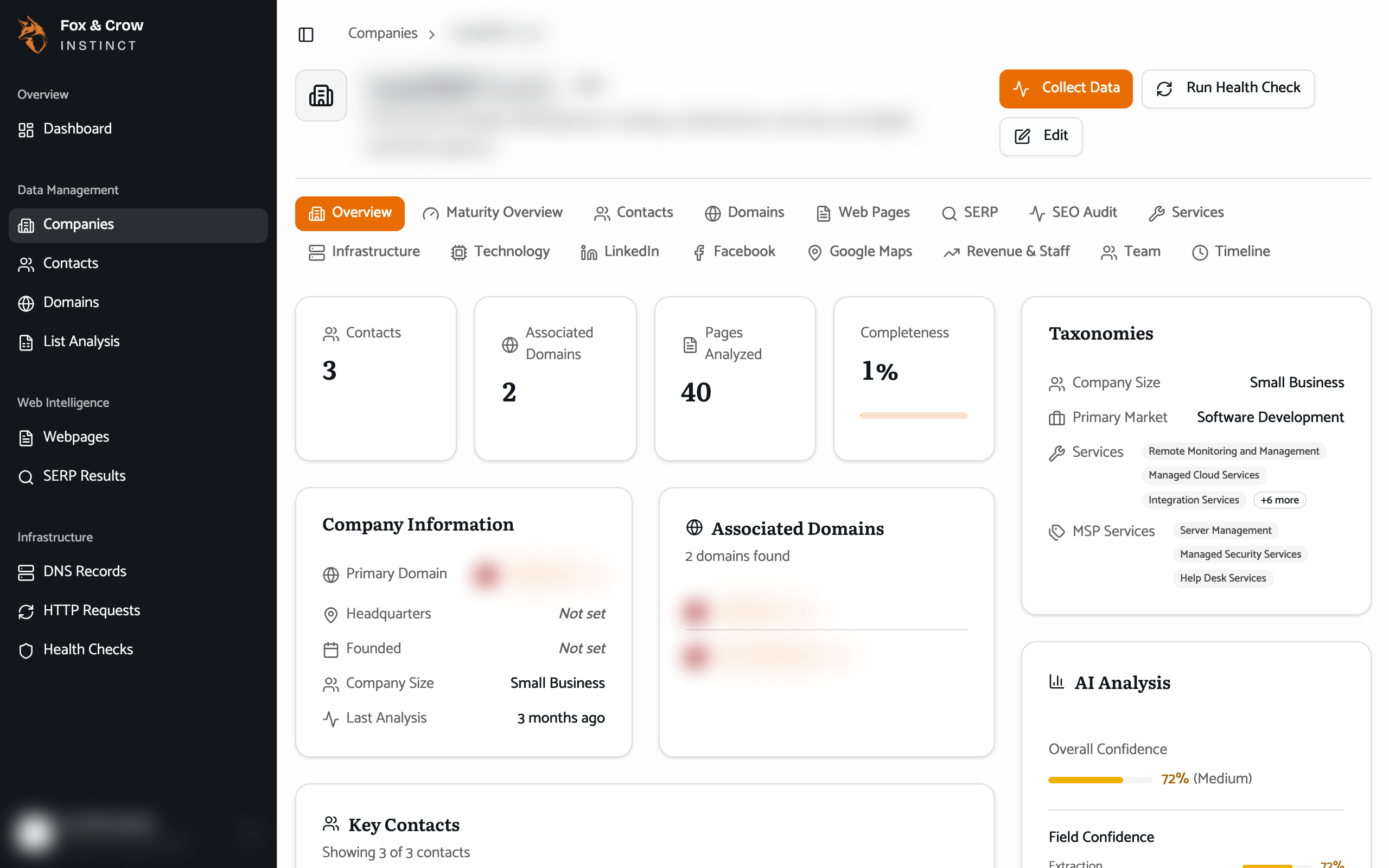
Figure 7.3The Overview tab. The metrics strip up top, then company information, key contacts, and the reasoning behind the MSP classification.
The bottom line
One screen, the whole company.
Header and tabs for depth, sidebar cards for the always-on summary. Start on Overview to size the account up, then use the tabs to go as deep as the conversation needs.